Setting up a GA4 property with the setup wizard
Google Analytics 4 (GA4) is the latest version of Google Analytics and comes with a range of new features to help you better understand your customers' behaviour and how your website is being used, so you can fine-tune your marketing strategy. If you're still using Universal Analytics, you should switch to GA4 soon, since Universal Analytics properties stopped processing data on 1 July 2023.
In this blog post, we'll show you how to make the switch from Universal Analytics to GA4.
Setting up a GA4 property with the setup wizard
Tag setup: connecting your website to your GA4 property
Configuring custom event tracking
Recommended: excluding internal website traffic
Setting up GA4 from scratch
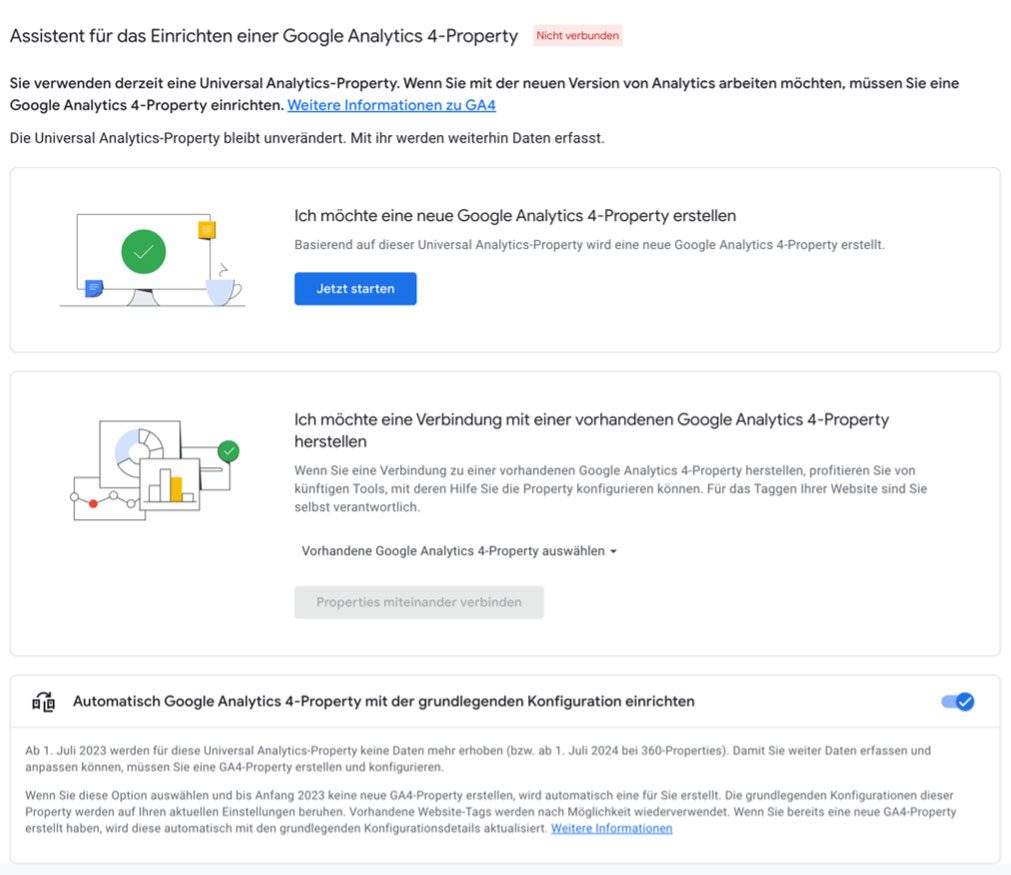
If you already have a Universal Analytics property, you'll currently see the following notice:

Click “Manage GA4 migration” to open the setup wizard. Then click “Get started” …
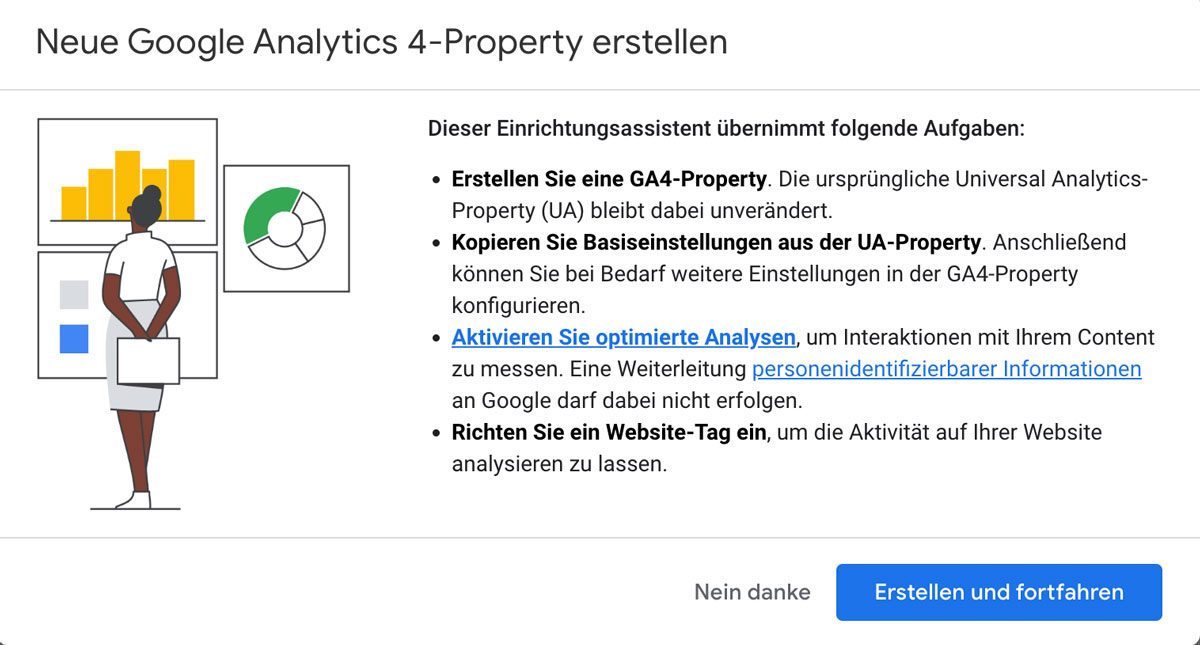
…and the following notice opens, where clicking “Create and continue” creates a new GA4 property.
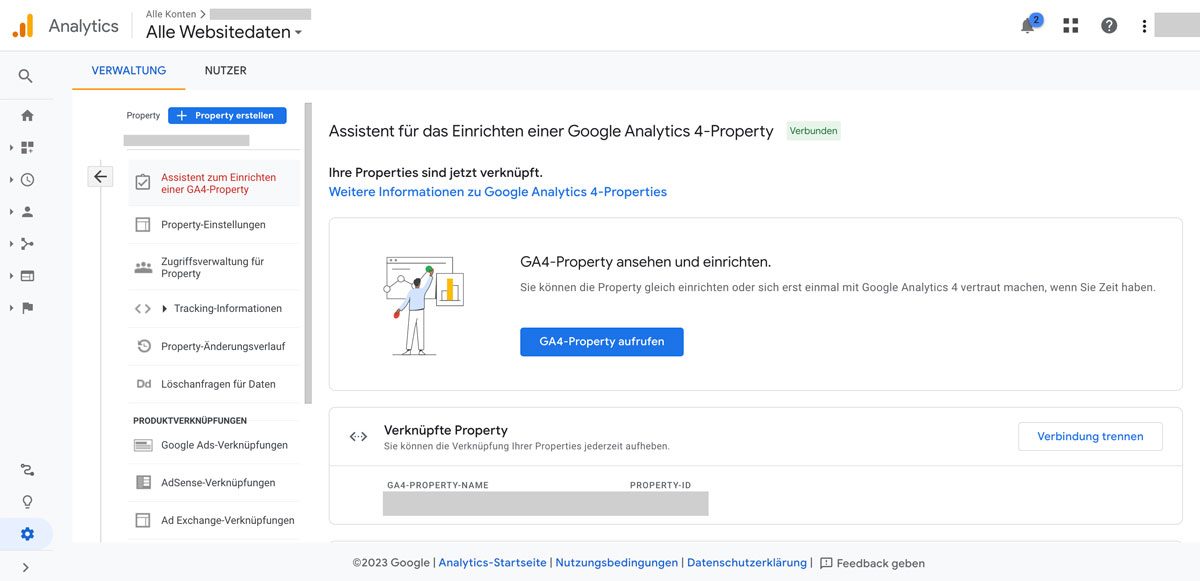
That's it – your new GA4 property is created and ready to open and use.
Note
Because of the different data structures, data from Universal Analytics can't be migrated or imported into a new GA4 property. So it's best not to delete your “old” Universal Analytics property, and to export any important statistics beforehand.
Tag setup: connecting your website to your GA4 property
Once your property has been created, you need to connect your website or app to GA4.
If you're using the setup wizard, an info window for the tag installation will usually open automatically.
In most cases, the easiest option is manual setup via the tracking script.
Alternatively, you can set it up as follows:
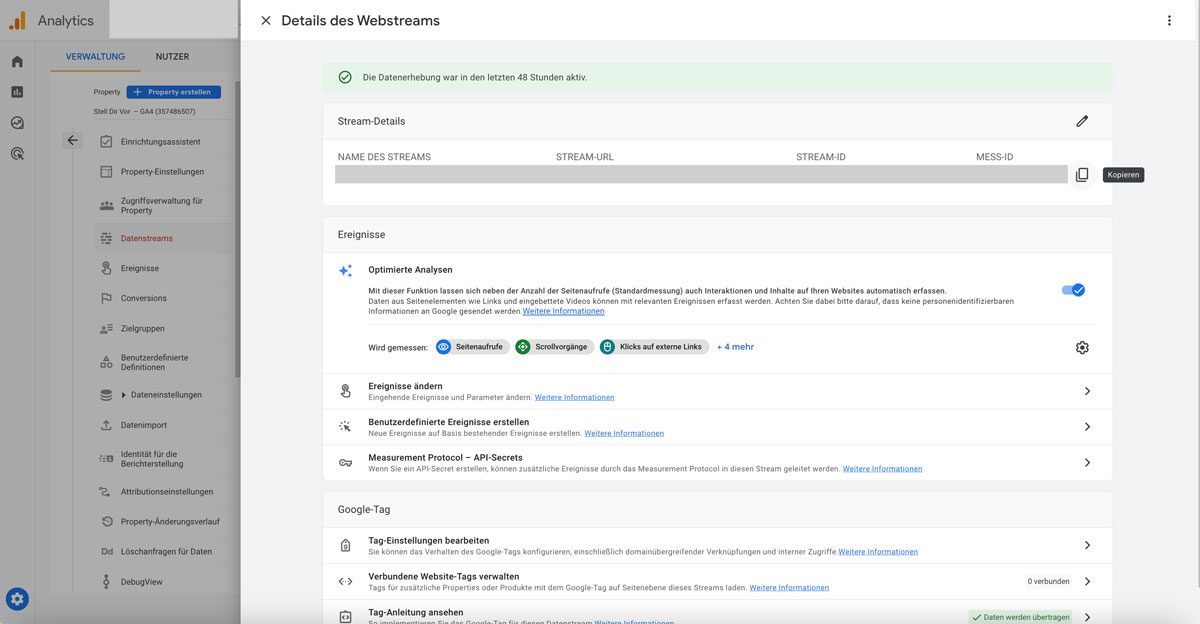
Go to "Admin" in your property and click "Data streams". The setup wizard will already have created a data stream, so you can copy the measurement ID from there or get step-by-step instructions for integrating the GA4 tag. You can also customise and extend events and analyses here.
Note
GA tracking via Google Tag Manager is still possible too. With GA4, integrating events is actually even easier.
Configuring custom event tracking
GA4 comes with new event-tracking methods to help you track your users' behaviour in more detail. Go to "Events" in your property and click "Create event". Select the events you want to track and configure them accordingly.
Recommended: excluding internal website traffic
It's easy to forget that visits from your own staff and web developers can skew your results. That's why we recommend filtering out internal website traffic. Here's how:
- In the data stream, click “Configure tag settings”
- Under Settings, select “Show all”
- Choose “Define internal traffic”
- Create a new rule
- Exclude the relevant IP addresses using the appropriate parameters
And now: monitor your data and fine-tune your analysis
Once you've implemented GA4, you can monitor your data regularly and adjust your analysis to optimise your marketing strategy. Go to "Reports" in your property and make use of the various analysis tools GA4 offers.
We're happy to help with your move to GA4 and a privacy-compliant integration on your WordPress website.
Get in touch now.
Not using Google Analytics yet, or would rather skip the setup wizard?
Here's how to set up GA4 from scratch:
Create a new GA4 property
To get started with GA4, you need to create a new GA4 property. Go to the Google Analytics homepage and click "Create Property". Then choose "Web" (for websites) or "Apps" (for applications), depending on the type of property you want to create. Enter a name for your property and add the relevant website URL or app package name. Then click "Next".
To connect the GA4 property to your website, go to "Admin" in your property and click "Add data stream". Choose "Web" or "Apps", depending on the type of data stream you want to add. Enter a name for your data stream and click "Next". Then follow the instructions to implement the tracking code on your website or in your app.
In summary
Switching from Universal Analytics to GA4 is quick and easy thanks to the setup wizard. Important: you may need to update your privacy notices or cookie-management tools – check in with your data protection officer on this.
Still have questions about switching to GA4, or about web analytics in general?
You can reach us any time by email at info@hello-flame.com or via our contact page.
And what fires you up?
Tell us what you’re working on right now — relaxed, over a coffee, virtually or in Munich-Sendling.
Arrange a chat